Cozy Game Restoration Cleaning Tools and Hotkeys
The tools confirmed in Cozy Game Restoration: UV torch, hair dryer and the cleaning tools that need cleaning, plus hotkeys and toggle settings.
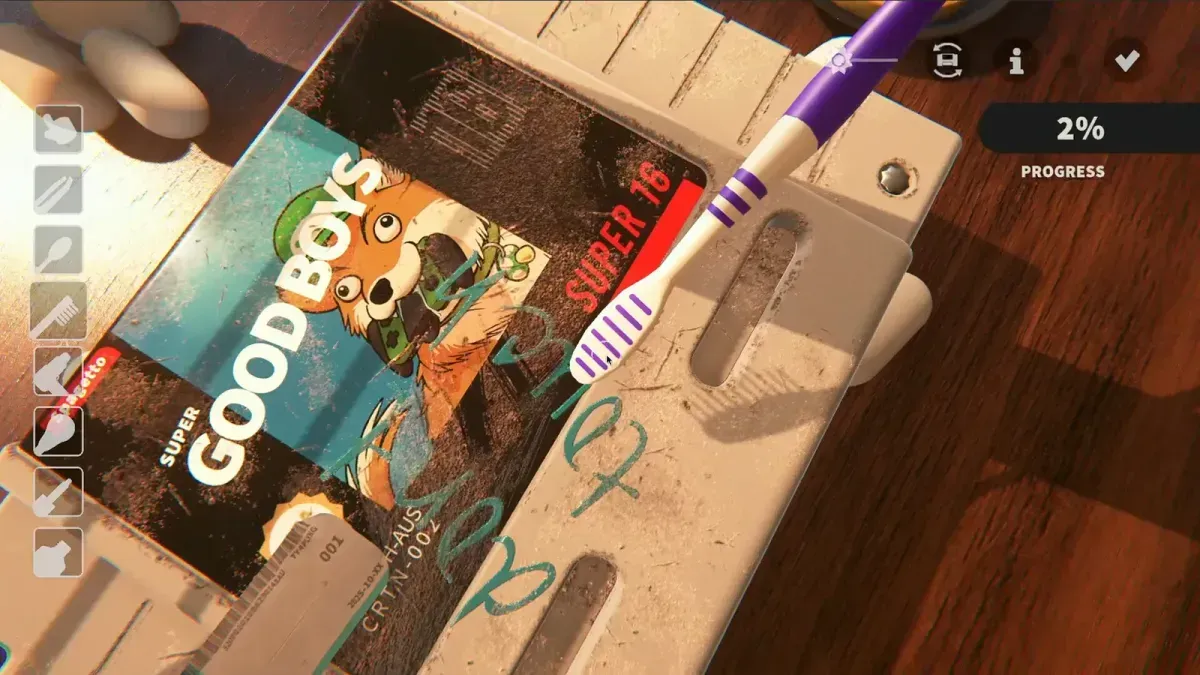
Which tools are confirmed so far?
The game keeps its full tool list close, but the demo and the developer’s posts confirm these:
| Tool | What it does | Source of the detail |
|---|---|---|
| UV torch | Highlights grime, shows dirt and ink stats, leaves a glowing trail on missed patches | Final demo notes (1 Oct 2026) |
| Hair dryer | Heats sticker adhesive so stickers lift cleanly | Demo patch (18 Jun 2026) |
| Cleaning tools | Remove dust, ink, discoloration, scratches; lose power when dirty and need cleaning | Store description and dev posts |
The store page is explicit that dust, ink, discoloration, stickers and scratches each require a different tool, which is why the tool bar fills up as you progress rather than staying at one scraper. Anything beyond the tools above is launch-week detail — treat a “best tool” list published before 4 November with suspicion.
Why do my tools stop working?
Because they are dirty. Tools load up with the grime you remove and lose effectiveness, and the fix is to clean them, not to buy a new one. The developer describes it as removing more dirt before you “have to go clean the tools” — the shelf bonuses in your collection room extend that interval.
The practical rule: clean tools when the cartridge stops responding, and always before a rare cartridge. Cleaning mid-cartridge costs seconds; fighting a clogged tool costs minutes.
What are the keyboard and controller hotkeys?
From the demo patch notes, and the safest list to learn before launch:
| Action | Keyboard | Controller |
|---|---|---|
| Continuous cleaning | Tab | Square (Xbox X) |
| Cycle tools | Z | D-pad up and down |
| Pan camera | WASD | Left stick |
| Zoom | Shift + W/S, or + and − | — |
The input map is still being tuned for launch, so expect small changes. Camera control assumes a mouse with two buttons and a scroll wheel even when you play with a pad, which is worth knowing before you sit down with a controller.
Which settings should I turn on?
Four settings carry most of the comfort:
- Tool toggle press — turn it on in the options menu or the in-game options menu so tools stay engaged instead of requiring a held button.
- Autocomplete — on by default. It clears the last fraction once every layer is at 99% or higher; turn it off in Accessibility if you want the final pixels by hand.
- Controller sensitivity — the developer has flagged controller sensitivity as something still being tuned, so set it early and revisit after the first cartridge.
- Volume sliders — master, music and effects are separate, which matters for a game built on audio feedback for cleaning.
Do tools change as I collect?
Yes. Games on your shelf influence the cleaning power and properties of your tools, and the shelf bonus system feeds tools, economy and discounts. Stacking several high-rarity carts of one genre pushes the related property up, so the same physical tool behaves differently depending on what you have collected.
That is the reason “which tool is best” has no fixed answer: the tool is one half of the equation and your shelf is the other. The layers those tools attack are listed on the damage types page. See collection room for the shelf side and restoration workflow for where tool cleaning fits in a session.
Related Articles
guides
Cozy Game Restoration Beginner Guide: First Hour
How the Cozy Game Restoration loop works, in order: unwrap parcels, read the grime layers, clean them off, shelf the cart, finish quests.
guides
Cozy Game Restoration Collection Room and Shelf Bonuses
How the Cozy Game Restoration collection room works: furniture placement, quest decorations, and shelf bonuses that change tool power and discounts.
guides
Cozy Game Restoration Damage Types and What Removes Them
The five grime layers in Cozy Game Restoration — dust, ink, discoloration, stickers, scratches — plus shell damage and regional cart differences.
Was this helpful?
Thanks for the feedback!